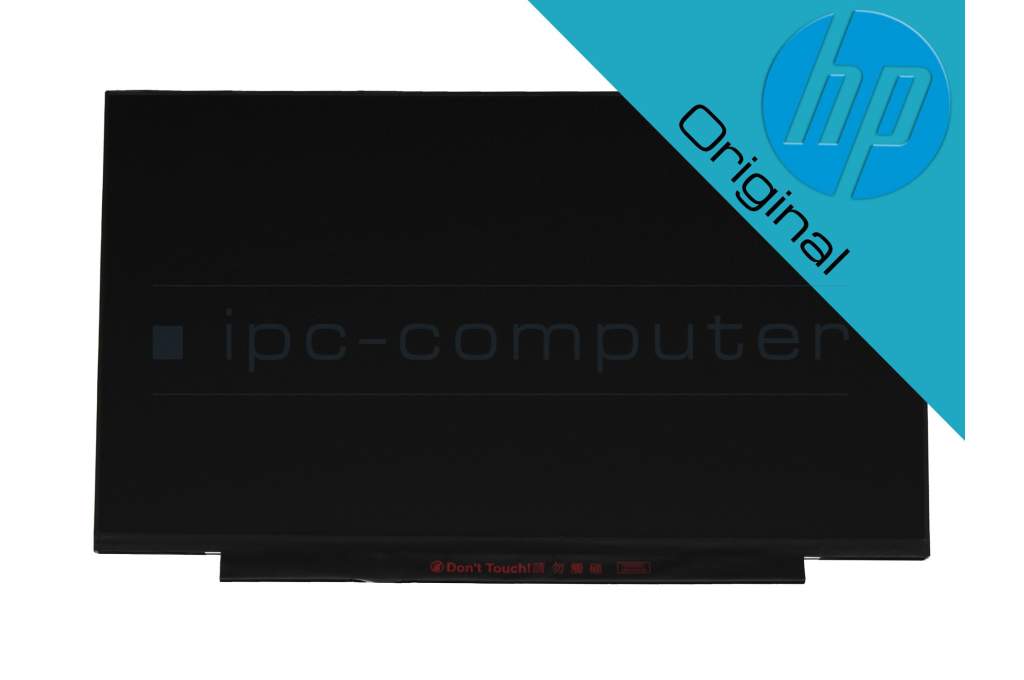
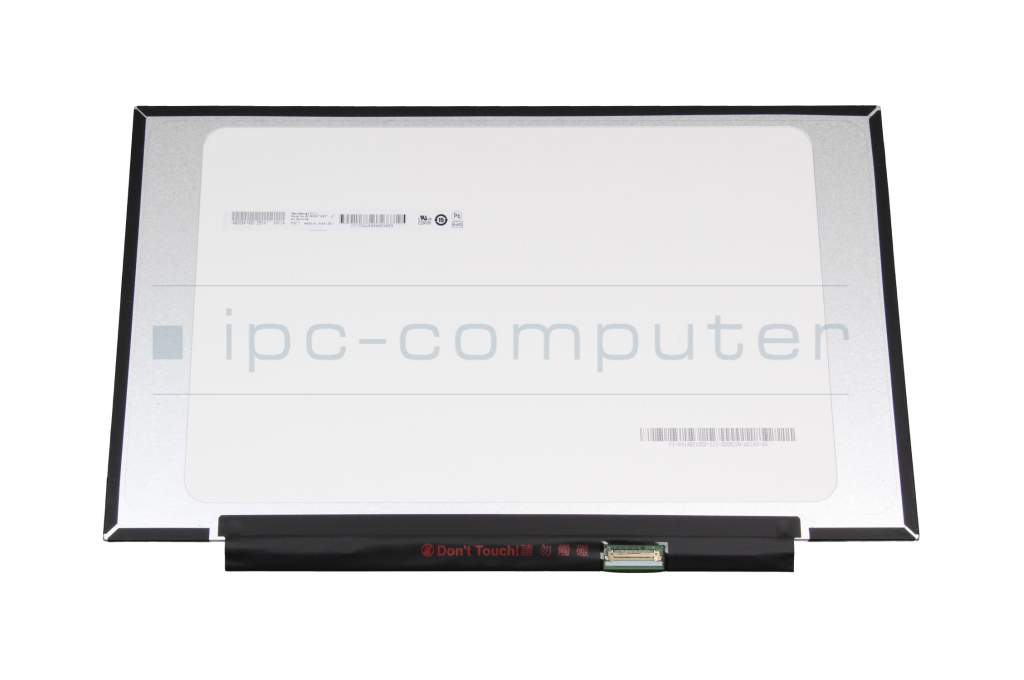
Alternative for Innolux N140BGA-EA4 Rev. C2 TN display HD (1366x768) matt 60Hz

134.82 $
incl. Tax (19%)
plus shipping charges
3 pieces in stock.
Express shipping possible.
Installation in our repair shop

Substitute part numbers:

AU Optronics B140XTN07.2 F/W:1

Manufacturer
HP
Item Number
N140BGA-EA4 Rev. C2
Sub-Partnumbers
B140XTN07.2 F/W:1,
Safety information
Sicherheits- & Herstellerkontakt-Informationen

Common data

Condition
New

Technical Data

Size
14.0 Zoll / 35.6 cm
Resolution
1366x768 / HD
Panel
TN
Surface
matt
Frame rate
60Hz
Backlight
LED
Length / Width
31.6 cm / 19.6 cm
Thickness
slimline
Brackets
no bracket

Display connection

Position of display connector
bottom right
Width of display connector
2.0 cm
Number of pins
30
Displayansteuerung
eDP

Category

Category
Displays
Usage
Laptop
Excerpt of suitable models for P/N N140BGA-EA4 Rev. C2
HP 340S G7 , HP 14s-dq1000 , HP ProBook 640 G8 , HP 14-bp000 , HP ProBook 640 G2 , HP ProBook 4430s , HP 14-fq0000 , HP 14s-fq0000 , HP 14s-fq1000 , HP 14s-fq2000

You've found this article over a part number. We'll check if it's the correct sparepart for your machine. To do this, please insert the manufacturer and the name of the model in the order comment.

How to identify my notebook model?

Videos & Contributions

Laptop Display FAQ

In this video we answer the most important questions about laptop displays.

Learn more >
6 important reasons for buying an original display

6 important reasons for buying an original display

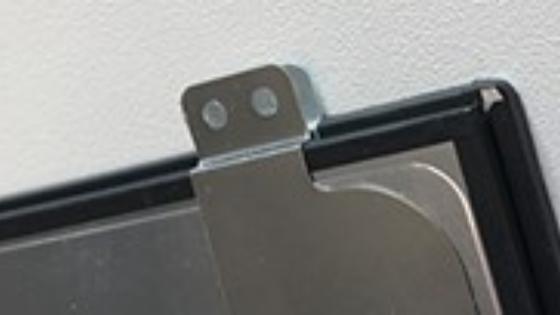
Optimal fit/mounting brackets, correct connection variant and connection position, best technical values are only some of the possible advantages of an original display.
Learn more >

Important and useful informations about laptop Displays

Frequently asked questions about Displays

  • How do I find out what display size I need for my laptop?

    The size of the LED display is an important criterion when it comes to replacement. It determines which panel and which design fits exactly in your laptop.

    1. conveniently determine the size via the model

    The easiest way to find the correct size is to check the model designation of your laptop. This can usually be found on the underside or in the system settings. If you enter it in our store, all compatible LED displays will be filtered automatically. This means you don't have to open your device or reach for the measuring tape yourself.

    2. manual measurement only with experience

    Alternatively, you can measure the visible screen diagonal (without frame). To do this, place the measuring tape at a lower corner and measure diagonally to the opposite upper corner. A value of 39.6 cm, for example, corresponds to around 15.6 inches. However, if you are less experienced, you should be careful when removing the frame, as modern frames are often thin and glued.

    3. when the workshop can help

    If you are unsure which size or variant (individual display or complete unit) is installed in your device, our service can help you. In many cases, it makes sense to use our “Notebook Doktor” Service with the inspection. Our technicians can determine the exact LED display and replace it professionally - without risk to the housing or connection sockets.

    Important note on spare parts Make sure you buy an original spare part. In our storeyou will find a large selection of perfectly fitting original displays. Simply enter your laptop model in the search to get guaranteed compatible spare parts. The picture quality, the connections and the frame will be a perfect match.

  • How do I find the right replacement display for my laptop?

    Finding the right replacement display is easier than many people think. A systematic approach is crucial. The model number, the design of the display and any special features of the manufacturer play an important role.

    Step-by-step guide to finding a display in the IPC spare parts store:

    1. Determine laptop model
      On the underside of your laptop, you will usually find a label with a model name or serial number. This information is the basis for the search in the IPC-Computer Shop.
    2. Use manufacturer and model navigation
      You can use our manufacturer model navigation to filter directly by your laptop model. This will only show you compatible displays without having to remove the old display first. This saves time and prevents incorrect orders, which are quite likely due to the different designs and technical features. Pay attention to whether your laptop has a glossy or matt display and what resolution it has, for example Full HD or 4K. These features are clearly indicated in the store.
    3. Consider the challenges of modern designs
      Many current laptops have glued front panels and very narrow display frames. This makes removal difficult and can lead to breakage if care is not taken. It is therefore often advisable not to open the display until you already have the new spare part. Alternatively, you can make use of the Notebook Doktor Service if you are unsure. Real added value for IPC customers: Suitable adhesive strips are already included with all bonded displays.
    4. Choose original or compatible
      IPC Computer offers both original spare parts and tested compatible displays. Both variants are of high quality and are carefully sorted by model number and technical specification. Often the displays do not differ at all and the identical component is supplied. Only the different source of supply for the compatible display allows a significantly better price.

    Tip: With over 20 years of experience in the spare parts trade and workshop service for laptops, IPC Computer can help you reliably. We can support you with the selection or take care of the professional installation of your new display. You can order a laptop or all-in-one display replacement here → Link to the repair form.

  • How do I open my laptop properly and what do I need to look out for when replacing the display?

    When opening a laptop and replacing an LED display, care, the right tools and technical understanding are crucial. Many current devices use very thin, partially glued display frames. This is particularly true for brands such as HP, Lenovo, Dell and Acer.

    Important tips for a safe opening process:

    • Use suitable tools: Use fine tools such as plastic spatulas, precision screwdrivers and suction cups if necessary.
    • Loosen adhesive connections: Carefully loosen existing adhesive bonds. Ideally, use a little heat to avoid cracks in the thin frame.
    • Be careful with the cable: Never pull on the cable when replacing the LED display. The eDP connector is extremely sensitive and can easily be damaged.
    • Perform a function test: Before final assembly, always briefly test whether the new display is receiving signals and the lighting is working properly.

    Why an original display is the better choice: To avoid unpleasant surprises during installation, we always recommend buying an original laptop display. This is the only way to guarantee that the fastenings fit exactly, the connector strip is in the right position and the picture quality (IPS or TN panel) corresponds to the factory settings. 

    Practical support and visual help:

    In our video series "My laptop from the inside" we clearly show how different laptop models are constructed and which steps are necessary to open them safely → Click here for the video series: My laptop from the inside (YouTube).

    If you are unsure about opening it or have a device that is heavily glued or particularly compact, our technicians in the workshop will safely remove it and replace the LED display professionally → Link to repair registration.

  • How do I recognize that my laptop display is defective?

    A defective laptop display is often characterized by typical symptoms. However, depending on the type of damage, the problem can be in different places (display itself, display cable or graphics unit).

    Typical signs of a defective display:

    1. No picture, but the laptop starts up audibly
      If the fans start up, status LEDs light up and you hear start-up tones, but the display remains completely black, the backlight or the panel itself may be defective. Connecting an external monitor usually provides clarity.
    2. Stripes, pixel patterns or flickering areas
      Horizontal or vertical lines, flickering or color disturbances usually indicate panel damage or a defective display cable. Here too, a test with an external monitor will help: if a clean image is displayed there, the fault is in the display.
    3. Cracks or visible glass breakage
      Mechanical damage is clear. Even fine hairline cracks under the glass surface lead to black or discolored areas that no longer change. In this case, only replacing the display will help.
    4. Lighting works, but no content is visible
      If the screen lights up, but no text or images are displayed, this indicates a defect in the signal path or in the display controller. The solution is to replace the display.
    5. Color casts or irregular brightness
      Discoloration, dark spots or shadows are often caused by pressure marks or aged backlighting (LED). Here too, the laptop display must be replaced.

    Tip for checking the cause: Before you classify the display as defective, you can carry out two simple tests:

    • Start the laptop with an external monitor connected. If everything remains normal, the mainboard or graphics unit is OK.
    • Also check whether the image flickers when opening and closing the display. In this case, the display cable could just be loose or broken.

    Recommendation from the Notebook Doktor:

    If you are unsure or there is visible damage, it is worth going to our IPC Computer service workshop. There we will check free of charge whether only the display needs to be replaced or whether there is another fault. You can easily request your display repair using our online form and send your device in for professional repair.

  • My display is flickering. Do I need a new display?

    A flickering LED display on the laptop often indicates a problem in the signal or power path. The panel itself is not always immediately defective. The cause can usually be clearly narrowed down with a careful check.

    Common causes of LED display flickering:

    1. Loose contact on the display cable (eDP/LVDS)
      Opening and closing the laptop puts a lot of strain on the flexible connection cable. A broken cable or loose connector can lead to flickering. It is typical that the image changes in certain display positions. Test this by opening and closing the laptop display. If the flickering occurs, it is usually not the display itself that is faulty.
    2. Fault in the LED backlight
      LED drivers or the power supply for the backlight can work irregularly. This results in visible brightness fluctuations or slight pulsation on the screen.
    3. Graphics driver or software problems
      After system or driver updates, an incorrect graphics driver can disrupt the LED display clock. Reinstalling or rolling back to the last stable driver often helps.
    4. Incorrect refresh rate or energy-saving modes
      Some laptops control the LED panel at a reduced frequency when energy-saving options are active. This is manifested by visible flickering. A fixed setting of 60 Hz often eliminates the effect.

    When a new LED display is necessary:

    If the flickering occurs permanently, cannot be remedied by changing the cable, driver or settings, or if brightness and color errors, lines or shadows also appear, the LED panel itself is damaged. Then the only solution is to replace it. You can easily order your IPC computer display repair using our online form.

    Alternatively, you can also easily order a replacement LED display via the manufacturer model navigation in our store order. This means you don't have to disassemble your device to find the right replacement part. If you are unsure or the housing is heavily glued, our “Notebook Doktor” Service will safely replace it for you.

  • My laptop display is very dark, so I can only see programs dimly. What is faulty?

    If your laptop display is only very dark and you can only dimly see content, this indicates a problem with the LED backlight or its control. The display itself continues to produce an image, but the lighting that makes it visible is not working correctly.

    Possible causes:

    1. Defective LED backlight
      In modern panels, LEDs are located behind or to the side of the actual screen as a light source. If this lighting fails partially or completely, the image is still generated but remains extremely dark.
    2. Error in the display power supply or in the LED driver
      A problem in the voltage converter or in the cable (usually eDP) can result in the backlight not receiving enough power.
    3. Brightness control or software error
      In rare cases, only the brightness control is affected, e.g. due to incorrect energy settings or outdated graphics drivers. A test with an external monitor helps to differentiate between software and hardware errors.
    4. Cable damage between mainboard and display
      Particularly on laptops that are frequently opened and closed, a break in the display cable can result in the signal to the backlight no longer being transmitted reliably.

    Procedure for isolating the fault:

    • Connect an external monitor: If everything is displayed normally there, the mainboard is OK and the fault is in the display or cable area.
    • Check brightness: Check whether the backlight is inadvertently reduced via key combination (e.g. Fn + F5/F6) or Windows power options.
    • Workshop check: If the screen lighting has completely failed or the image is barely visible even at maximum brightness, the display or cable should be replaced.

    Our recommendation:

    In most cases, the cause is a defect in the LED backlight or the associated driver. As the display usually has to be opened for diagnosis and the frames are often heavily glued, we recommend a replacement by the “Notebook Doktor” Service. Via the manufacturer model navigation in our store to find the right replacement LED display without having to remove the old panel first.

All questions about Displays

loader

Accessories, suitable alternative products and recommendations

IPC-Computer STRIP1 Display adhesive strips, double-sided - Kit
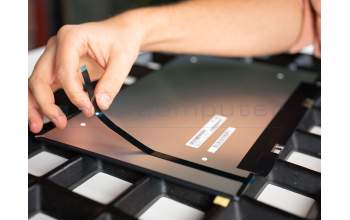
IPC-Computer STRIP1 Display adhesive strips, double-sided - Kit
In stock
23.54 $
incl. Tax (19%)
plus shipping charges

IPC-Computer ZDF002 Premium privacy film 14 inch
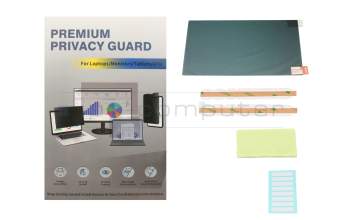
IPC-Computer ZDF002 Premium privacy film 14 inch
In stock
31.03 $
incl. Tax (19%)
plus shipping charges