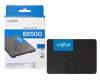
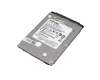
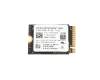
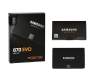
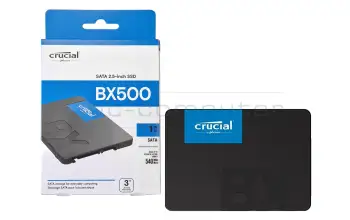
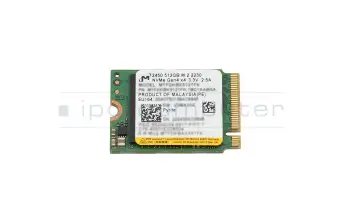
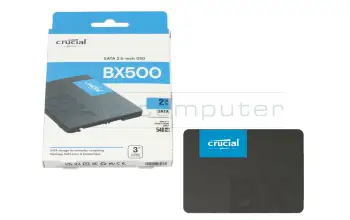
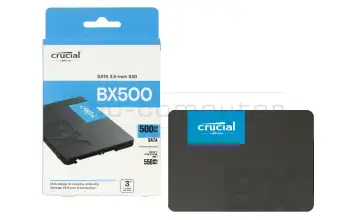
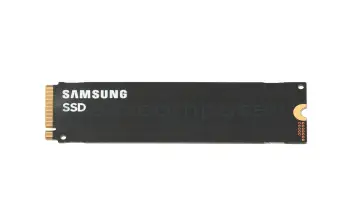
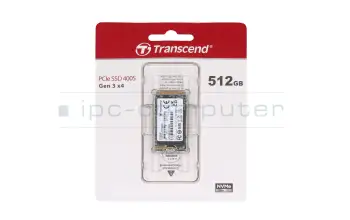
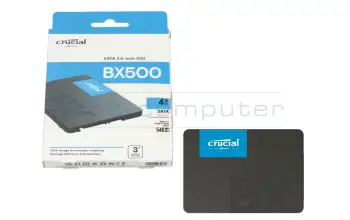
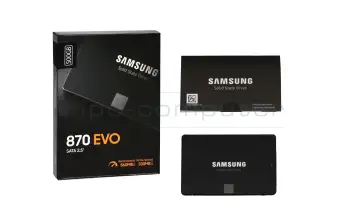
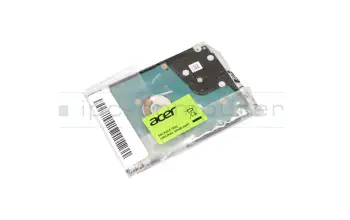
The hard disk is colloquially referred to as the memory of the device. It stores programs and other files. Today there are two main technologies: the classic HDD (Hard Disk Drive) and the modern SSD (Solid State Drive).
The HDD consists of rotating magnetic discs and a read head. With it you get a lot of storage space at a reasonable price. Although it is very sensitive to impacts or incorrect positioning and should therefore be handled with caution, it has the great advantage that seemingly lost data can often be recovered.
The SSD works similar to a USB stick, it consists of so-called flash memories. The lack of mechanical parts makes it much quieter and less sensitive to impacts compared to the HDD. It is also lighter and works much faster, making it ideal for mobile devices and gaming. Of course, the many advantages also have their price, the costs per GB are much more expensive than those of the HDD. All in all, however, it can be said that the installation of an SSD is well worth it if you want to increase the speed and performance of your notebook.
A combination of HDD and SSD is the SSHD. This hybrid hard disk combines the magnetic disk technology of the HDD with the flash memories of the SSD. Thus it has a considerable storage capacity, but runs much faster than the conventional HDD.
Yes, you can basically replace the SSD in your laptop yourself if you are careful and have some manual dexterity. Many modern laptops are designed in such a way that it is easy to replace them with a little know-how - however, the devices differ significantly depending on the manufacturer and design.
You should bear this in mind:
Professional installation service
If you are unsure about opening the device or have no experience with sensitive electronics, it often makes more sense to have the installation carried out by a technician.
In the IPC-Computer Shop you can order the right SSD for your laptop modeldirectly with installation- our specialist workshop will carry out the professional replacement including functional testing (installation costs currently €99 incl. VAT).
You can get additional help in our video series "My laptop from the inside", in which you can see step by step how different models are opened and SSDs are safely replaced:
→ YouTube Playlist: My laptop from the inside - video instructions
See also:To protect your data in the best possible way and extend the service life of your SSD, you should take a few important precautions:
1. regular and automated backups
Back up your data according to the 3-2-1 principle:
2. monitor the SSD regularly
Current SSDs contain S.M.A.R.T. sensors that monitor temperature, status and write cycles. Free tools such as CrystalDiskInfo or AIDA64 help you to detect wear or impending failures at an early stage. If the first warnings appear, you should replace the drive in good time.
3. leave free storage space
Avoid completely filling your SSD with data. Keep 10 to 20 percent of the capacity free so that the so-called "wear leveling" works and the swapping works.
4. reduce physical and thermal stress
High temperatures can damage the storage cells. Make sure your laptop is well cooled and avoid direct sunlight or prolonged full load.
5. keep the firmware up to date
Many manufacturers release firmware updates that improve the stability and error correction of the SSD. Therefore, check your manufacturer's update tools regularly.
Help with replacement and data transfer:
If the condition of the SSD visibly deteriorates or the write cycle capacity (TBW value) is reached, replace it in good time.
In the IPC-Computer Shop you will find tested original SSDs for almost all laptop manufacturers. You can easily select and order the compatible SSD based on your laptop model.
In our video series "My laptop from the inside", we show you step by step how to open your laptop properly and install an SSD safely → click here for the YouTube playlist.
If the replacement does not work, the IPC solution promise applies: You can send in your laptop and our technicians will install it and, if possible, transfer the data. The corresponding prices for installations and services can be found in our current price list.
See also:Yes, the issue of the different lengths of M.2 SSDs is still topical and can easily lead to problems when buying if you don't pay attention to it.
1. different sizes
M.2 SSDs are available in several lengths - the most common are 2242, 2260, 2280 and 22110. these numbers stand for width × length in millimeters (e.g. 22 mm wide and 80 mm long = M.2 2280). The length determines whether the SSD physically fits into the slot of your laptop.
2. compatibility issues
Not every M.2 slot supports all lengths. Many laptops only offer space for 2280 models, while some ultrabooks only offer 2242 or 2260. If the SSD is too long, it cannot be installed at all. If it is shorter, it may be mechanically loose if there is no suitable holder.
3. tip for checking
Before you order a new SSD, you should check the device or the manual to see which M.2 length and interface (SATA or NVMe) is supported. If you are unsure, the spare parts finder in the IPC-Computer Shop: There you can display all compatible M.2 SSDs via your laptop model and order them directly.
4. practical when installing
Modern laptops often have several holes for different lengths. Pay attention to the correct screw position when inserting and insert the drive at a flat angle to avoid damaging the connection.


To determine whether your laptop can accommodate an additional SSD, you need to check which interfaces (e.g. SATA or M.2 NVMe/SATA) and which physical space (free port or installation slot) is actually available in the device. You can usually find this information in the manufacturer's specifications of your laptop - either in the manual or on the manufacturer's website.
Methods for checking:
Important: A direct memory expansion on an existing SSD is not technically possible - you can only get more capacity by installing a new, compatible SSD.
If you wish, you can order the right SSD including installation (99 € incl. VAT) directly from the IPC-Computer Shop - our specialist workshop will take care of the professional replacement and functional test.
See also:There are some typical signs that you can use to recognize whether your SSD may be defective or could soon fail. It is important to react early to avoid data loss.
Typical warning signs of a defect are
Professional diagnosis and installation service:
If you notice any of these abnormalities, you should back up your data immediately and replace the SSD at an early stage. You can find out more about your laptop model in the IPC-Computer Shop to find and order all compatible replacement SSDs directly.
If you are unsure about the replacement, the videos in our "My laptop from the inside" series will help you. If the replacement does not work or you need support with data transfer, the IPC solution promise applies. Simply send us your device and we will take care of the professional installation.
You can find the prices for this in our repair price list. This way, you can ensure that your SSD works reliably and you don't lose any important data.
See also:Opening a laptop requires care, the right tools and some experience, as this is the only way to open the laptop safely and properly.
Basic rules for opening:
In our series "My laptop from the inside" series, we clearly show how different laptop models are constructed and the steps required to open them safely.
The videos help you to better understand the construction of different brands (e.g. HP, Lenovo, Dell, Acer) and show you where the battery, mainboard or RAM are located.
If you are unsure about opening your device or if it has permanently installed components, our technicians in the workshop will safely remove and repair it.
1. back up your data first!
Before you start dismantling, you should back up all important files to an external hard disk, a USB stick or the cloud.
2. disconnect the power and prepare your laptop
Switch off your laptop completely, disconnect the power supply and - if technically possible - deactivate or remove the battery. This will prevent electrical discharges or short circuits when working on the device.
3. carefully open the base plate
As current laptops generally no longer have a separate service flap, you usually have to remove the entire back of the housing. To do this, loosen all screws and carefully lift off the cover using a suitable tool.
If you would like to take a closer look at the opening process, you can find over 250 video tutorials in our "My laptop from the inside" video series, which show you step by step how to open various laptop models and safely replace components such as the SSD or hard drive.
→ YouTube Playlist: My laptop from the inside - video instructions
4. remove the old hard disk
The hard disk is usually attached with screws or a holding frame and connected to the mainboard via a plug connection. Carefully loosen it and pull the connector straight off.
5. insert new hard disk or SSD
When buying a new hard disk, make sure it has the right connection (SATA or PCIe NVMe) and the right size (e.g. 2.5 inch or M.2).
In the IPC-Computer Shop you will find tested original hard disks and SSDs for almost all laptop manufacturers - immediately available from stock. Insert the new drive into the same slot and secure it with the existing screws.
6. set up the system again
If you have created a backup, you can restore your system directly. Alternatively, you can also reinstall Windows 11. This service is also listed in our repair price list if you would rather have us carry out the installation.
7. reassemble and check the laptop
After you have reassembled everything, start your device and check whether the new hard disk is displayed in the BIOS or in the Windows disk management.
If you are unsure or something does not work:
Thanks to our IPC solution promise, you are not taking any risks. If you are unable to complete the installation successfully, simply send us your laptop - our workshop will install the SSD professionally and, if possible, take over your data.

The cost of replacing an SSD depends on several factors, in particular the laptop model, the SSD technology (SATA, M.2 NVMe PCIe 3.0, 4.0 or 5.0) and whether you carry out the installation yourself or use the professional installation service from IPC-Computer. professional installation service from IPC-Computer professional installation service.
Conclusion:
For a complete SSD replacement including installation, you should expect a total price from around 140 - 350 euros - depending on the SSD selected. In return, you get a high-performance, tested solution and benefit from over 20 years of repair experience and the IPC solution promise.
Today, laptops almost exclusively use SSDs, which differ in terms of design, interface and speed. The more modern the interface, the higher the transfer rate - and therefore the overall performance of your system.
The most common standards at a glance:
Help with selection and installation:
If you are unsure which SSD fits your device, you will find suitable models for almost all laptop manufacturers in the IPC-Computer SSD store.
In our "My laptop from the inside" series, we show you step by step how to open your device correctly and replace the SSD. If the installation doesn't work, you can rely on the unique IPC solution promise: We'll take care of the professional installation and data transfer if you send us your laptop → You can register your repair here.
→ YouTube Playlist: My laptop from the inside - video instructions


Which SSD you can install in your laptop essentially depends on two factors: the available interface and the physical space available in the housing.
1. check interface
Laptops usually support one of the following standards:
You can find out whether your device supports SATA or M.2 - and in the case of M.2 which protocol (NVMe or SATA) - in the manufacturer specifications of the laptop (manual, website) or via the IPC-Computer spare parts finder to find out. There you can enter your model and you will only receive 100% compatible SSDs that are guaranteed to fit in your device.
2. check available space
In addition to the main drive, some laptops offer a second M.2 slot or a free SATA port in which you can install an additional SSD. This free slot varies depending on the model - so it's worth taking a look at the manual or the device. Our video series "My laptop from the inside" will help you identify the slots in your model → To the playlist.
3. recommendation for SSD selection
For most current laptops, M.2 2280 NVMe SSDs are the most common and most powerful choice. Older devices often use SATA SSDs in 2.5-inch format.
4. installation and service
In the IPC-Computer Shop you will find tested, original-compatible SSDs with optional professional installation service. On request, you can not only get the right drive, but also professional installation including functional testing - directly from the IPC-Computer specialist workshop. You can order the installation including the SSD directly in the store at www.ipc-computer.de. Further services can be found in our current price list.
If you want to get a new, larger SSD, there are some free tools that can help you clone, check and manage your drives. These programs will help you to transfer data securely, control the performance of the new SSD and get the most out of your hardware.
The most important tools at a glance:
1. Macrium Reflect Free
A very popular tool for cloning SSDs. It creates 1:1 images of your old drive and transfers them directly to the new SSD - ideal if you want to move your system without reinstalling it.
2. AOMEI Backupper Standard or EaseUS Todo Backup Free
These programs also offer free cloning and backup functions and are easy to use. You can use them to back up your current system before you install the new SSD.
3. CrystalDiskInfo
A classic for monitoring the status of your SSD. It displays temperature, operating hours and the most important SMART values - so you can recognize early on if a defect is imminent.
4. manufacturer tools (e.g. Samsung Magician, Crucial Storage Executive, WD Dashboard)
These tools are free and specially tailored to the respective SSD models. They enable firmware updates, benchmark tests and status checks. They are particularly useful after installing your new SSD to optimize performance and service life.
5. Windows' own disk management
This allows you to easily adjust or format partitions on your new SSD when you are setting up the drive.
Security tip: Back up your data on an external hard disk or in the cloud before making any changes. This way, you are always on the safe side in the event of an error.
If you don't have the confidence to move the data or install the drive yourself, our specialist workshop will take care of the professional SSD replacement including data transfer. In the IPC-Computer Shop you can select the right SSD for your laptop model and book the installation service (currently €99 incl. VAT in the price list).
Yes, this can happen. It is therefore always advisable to carry out an up-to-date data backup before opening your laptop - regardless of whether you are only installing the additional SSD or replacing another spare part.
When will the data be retained?
Your data will not be lost if you leave the old SSD installed and install the new SSD. This is always possible if there are still ports and slots available in the laptop. In this case, the operating system on the old drive remains untouched, while the new SSD serves as additional storage space.
Why a backup is still important:
Especially when working inside the laptop, it can happen that drives are briefly disconnected or damaged - a prior backup ensures that nothing important is lost.
Professional support:
If you would prefer to have the replacement carried out professionally, you can contact the IPC-Computer Shop to order the right SSD directly , including installation. On request, our technicians will also be happy to carry out the complete data backup and data transfer before the new SSD is installed. This means you take no risk and your system is immediately ready for use again.