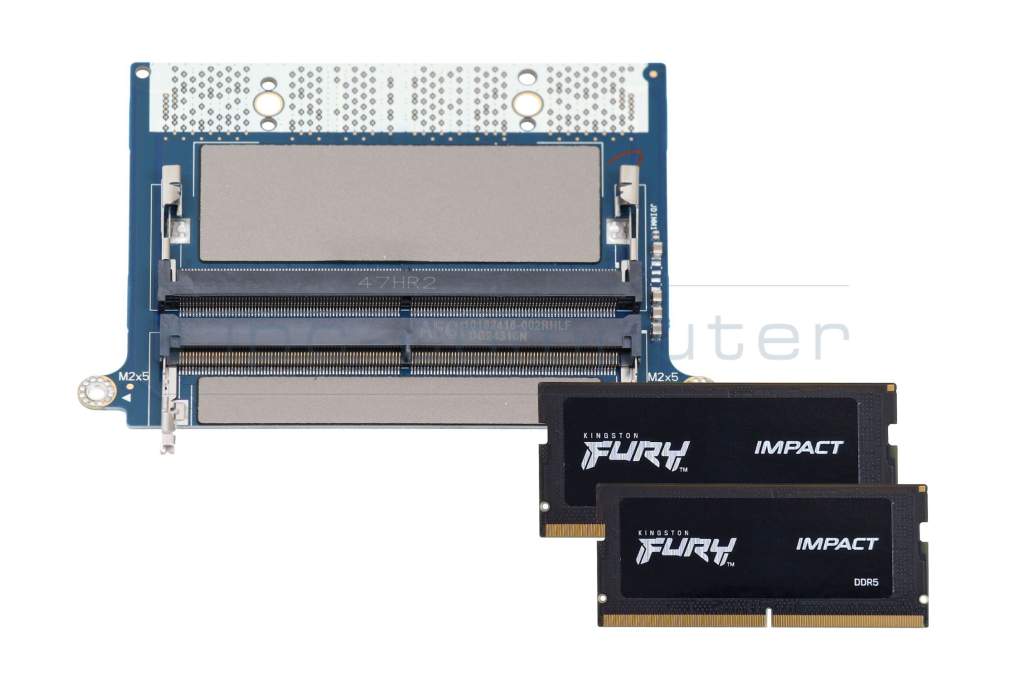
Substitute for Dell CAMM ADAPTER memory 32GB DDR5-RAM CAMM (Dell) CAMM Adapter Kit Kingston 5600Mhz 32GB
Substitute part numbers:
RN12H
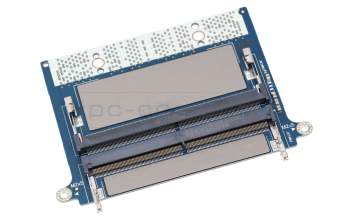
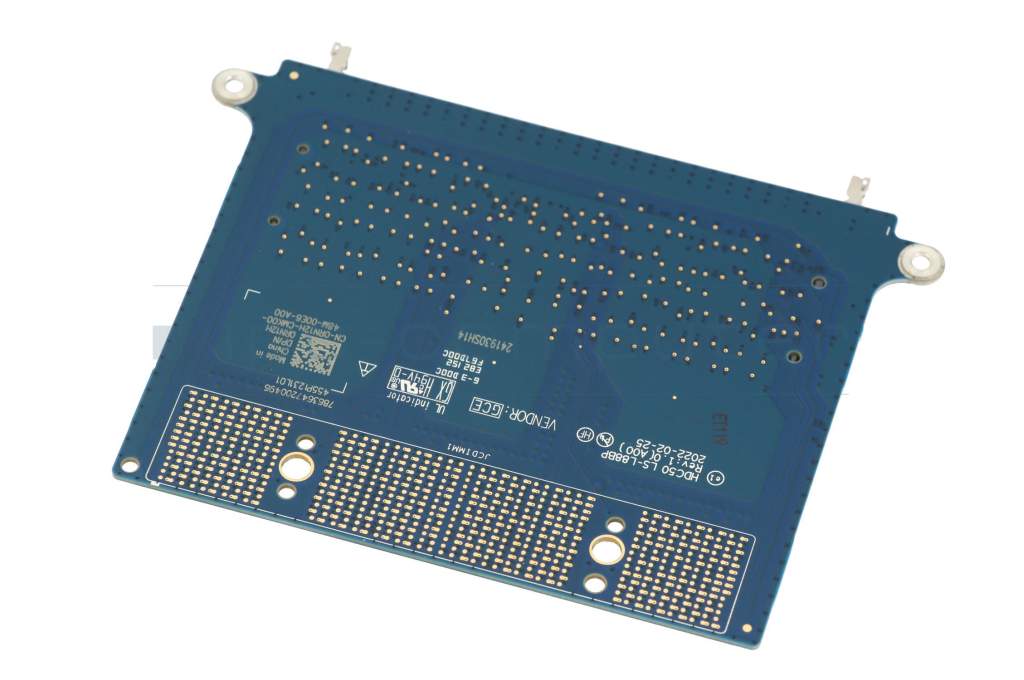
RN12H original Dell CAMM Adapter for 2x SO-DIMM DDR5 RAM
plus shipping charges
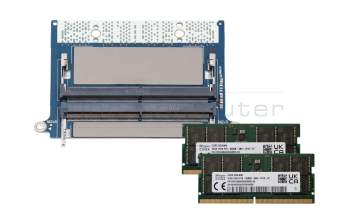
Substitute for Dell CAMM ADAPTER memory 64GB DDR5-RAM CAMM (Dell) CAMM Adapter Kit SK Hynix 5600Mhz 64GB
plus shipping charges
Product Info
- Manufacturer
- IPC-Computer
- Item Number
- CAMM ADAPTER
- Sub-Partnumbers
- RN12H
- Sicherheitsinformationen
- Sicherheits- & Herstellerkontakt-Informationen
Common data
- Condition
- New
- Manufacturer
- IPC-Computer
Technical Data
- Capacity
- 32GB
- Type
- CAMM (Dell) DDR5-RAM
- Memory module
- PC5-5600
- Frequency (MHz)
- 5600 MHz
Cost-effective 32GB memory upgrade for Dell CAMM systems – kit includes 2x DDR5 5600Mhz 16GB
Discover the smart solution for your CAMM-based laptop: the original Dell circuit board for easy replacement of CAMM with standard DDR5 SO-DIMM memory!
The CAMM (Compression Attached Memory Module) standard was originally developed by Dell and is currently not widely used – which is why CAMM memory is so expensive. But now there is a cost-effective alternative!
With this original circuit board from Dell, you can easily upgrade your system to standard DDR5 SO-DIMM memory – without the need for expensive special modules. Benefit from the following advantages:
- Full compatibility: Supports 2x DDR5 SO-DIMM memory with 5,200 MHz or 5,600 MHz
- Maximum flexibility: Use standard memory that you can easily upgrade or replace at any time
- Significantly cheaper than CAMM modules – with the same performance!
Installation is straightforward: simply remove the back cover of your laptop, replace your existing CAMM module with this adapter, and insert the two DDR5 SO-DIMM memory modules supplied. Step-by-step instructions can be found in your system's service manual.
Reduce your upgrade costs – without compromising on performance.
Get the original solution now and make your system fit for the future!
This adapter is compatible with the following Dell workstation laptops:
Precision 7670
Precision 7680
Precision 7770
Precision 7780
Category
- Category
- Memory / RAM
- Usage
- Laptop
- Excerpt of suitable models for P/N CAMM ADAPTER
- Dell Precision 16 (7670) , Dell Precision 17 (7770) , Dell Precision 16 (7680) , Dell Precision 17 (7780)
You've found this article over a part number. We'll check if it's the correct sparepart for your machine. To do this, please insert the manufacturer and the name of the model in the order comment.
Videos & Contributions
Does the RAM fit my device?
If you are unsure whether the RAM module fits your notebook, this video provides a short and clear answer to all important questions about compatibility.
Learn more >
Is it worth it? - Upgrading the main memory
Swap or expand laptop RAM / main memory
The exchange is child's play, even laypeople without technical knowledge can play. In this video we show how to do it.
Learn more >Important and useful informations about laptop Memory
Frequently asked questions about Memory
- Can I install different RAM modules, than the ones already installed
You can install RAM from a different manufacturer, as long as the specifications are the same.
For example, when your computer currently has a DDR3 SO-DIMM module with a speed of 1600MHz installed, you should only use DDR3 SO-DIMMs with a 1600 MHz speed to upgrade/replace your RAM. It is possible to use different frequencies but the system will then use the speed of the slowest RAM module.
- What is the difference between DDR3 and DDR3L?
The difference between the two types of DDR3 is in their supported voltages. Normal DDR3 requires 1,5 Volt, whereas DDR3L (L for Load reduced) also supports 1,35 Volt. This reduction in voltage results in a slightly lower power consumption. However, this reduction is so small, that the difference in battery life caused by using load reduced RAM even in laptops is hardly noticeable. It only makes a difference in data centers with hundreds of computers, each with up to 32 memory modules.
Even though the power consumption difference is tiny, you have to watch out for compatibility. Systems, which only support normal DDR3 usually, work with DDR3L, too, because it also supports 1,5 Volt. But there are computers, especially laptops, which only support DDR3L. Normal DDR3 might work here, however this is not guaranteed and might come with some stability issues. So, if you are not sure, which type of DDR3 your system needs, it is better to buy the load reduced variant or consult an expert.
- What is the maximum amount of RAM my laptop supports
Expanding the main memory by retrofitting a RAM module is a common tuning measure. Significant improvements result when working with many applications in parallel or when the device already swaps out data to the FP by default (swapping) from the operating system. Nowadays, more and more devices have their main memory soldered directly to the mainboard and can therefore not be replaced. The decisive factor is whether the device still has a free slot for additional memory modules and how many GB you can put in there in total. If such a free slot is available, it is important to determine the right memory module and insert it into the appropriate slot, which is usually located under the bottom of the device or under the keyboard. Almost all devices, with the exception of some ultrabooks and netbooks, already have two or more sockets for storing memory modules. Up to which GB maximum size you can upgrade depends on the mainboard, chipset (information on this is provided in the device manual) and the availability of the modules.
See also: - What RAM do I need for my Notebook
You can use the following tools to see what RAM your Notebook needs:
AIDA (Download: www.lavalys.com)
CPUZ (Downlaod: www.cpu-z.de)
SIW (System Information for Windows) (Download from www.heise.de)
HWiNFO (Direct download here)
Alternatively, you can remove the currently installed RAM and read the necessary specifications from the labels on them. Should there be no label or should you not be able to recognize the type of RAM needed. You can still use the tools listed above or consult a specialist.
- What speed does my RAM run at
In Windows 10 open the Task-Manager (Control+Shift+Escape), then click on more details in the bottom left corner. Select the tab performance and click on RAM Now you will be able to see many values about your RAM including its speed.
- Where can I see how much RAM I have installed in Windows 7
To see how much RAM you have installed in Windows 7 you have to do the following steps:


All questions about Memory