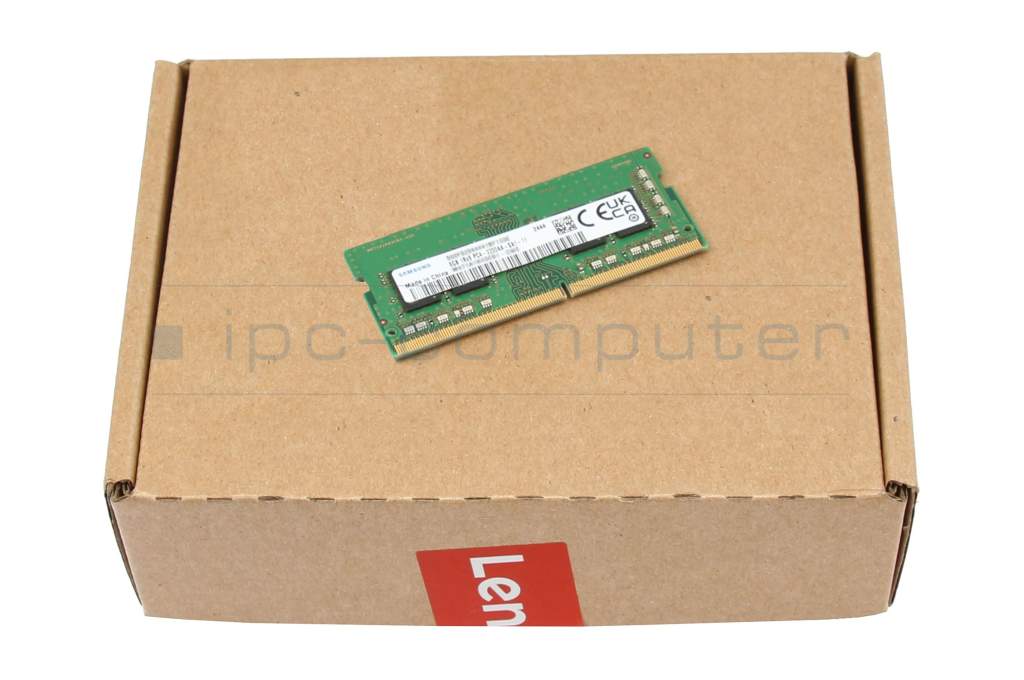
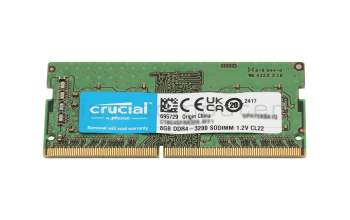
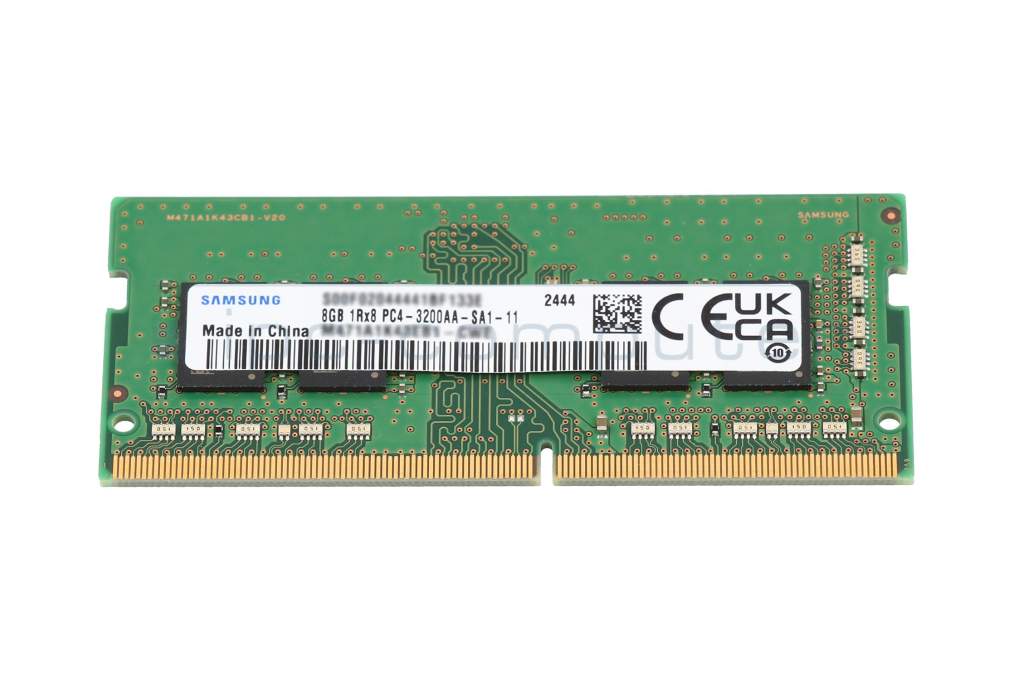
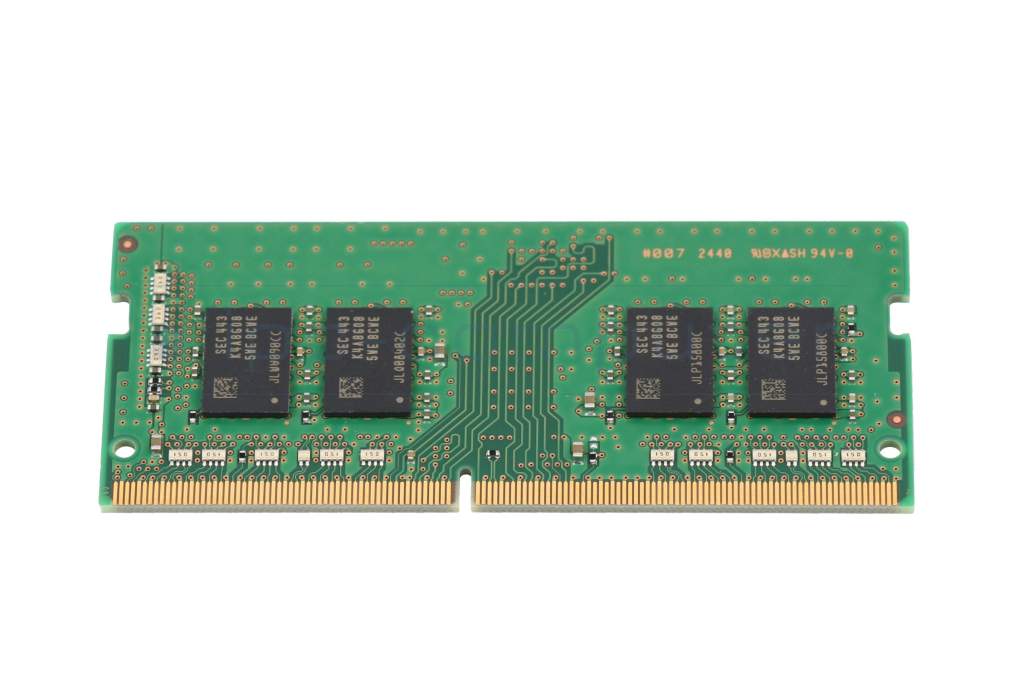
Substitute for Hynix 5M30V06795 memory 8GB DDR4-RAM
89.88 $
incl. Tax (19%)
plus shipping charges
8 pieces in stock.
Express shipping possible.

Lenovo 5M30Z71796 memory 16GB DDR5-RAM

Lenovo 5M30Z71796 memory 16GB DDR5-RAM

Currently not available
170.13 $
incl. Tax (19%)
plus shipping charges

Product Info

Manufacturer
Lenovo
Item Number
5M30V06795
Primary Partnummer
5M31L87452
Safety information
Sicherheits- & Herstellerkontakt-Informationen

Common data

Condition
New
Manufacturer
Lenovo

Technical Data

Capacity
8GB
Type
SO-DIMM DDR4-RAM
Memory module
PC4-3200
Frequency (MHz)
3200 MHz
Number of memory chips
8
Position of the chips
both sides

Category

Category
Memory / RAM
Usage
Laptop
Excerpt of suitable models for P/N 5M30V06795
Lenovo IdeaCentre AIO 510S-23ISU (F0C3) , Lenovo IdeaPad 510S-13IKB (80V0) , Lenovo IdeaPad 110-17IKB (80VK) , Lenovo IdeaPad 310-15ISK (80SM/80SN) , Lenovo V310-15IKB (80T3) , Lenovo ThinkCentre M73 , Lenovo ThinkCentre M900 , Lenovo IdeaPad 310-14IKB (80TU) , Lenovo Legion Y920-17IKB (80YW) , Lenovo V320-17IKB (81AH)

You've found this article over a part number. We'll check if it's the correct sparepart for your machine. To do this, please insert the manufacturer and the name of the model in the order comment.

How to identify my notebook model?

Videos & Contributions

Does the RAM fit my device?

If you are unsure whether the RAM module fits your notebook, this video provides a short and clear answer to all important questions about compatibility.

Learn more >
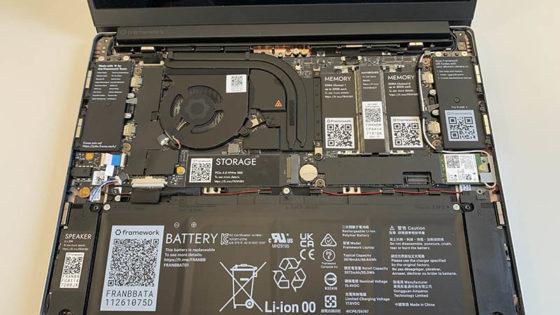
Is it worth it? - Upgrading the main memory

Is it worth it? - Upgrading the main memory

RAM expansion in the notebook. Seven points ALWAYS valid notebook tuning TIPS
Learn more >

Swap or expand laptop RAM / main memory

The exchange is child's play, even laypeople without technical knowledge can play. In this video we show how to do it.

Learn more >

Important and useful informations about laptop Memory

Frequently asked questions about Memory

  • Can I install memory modules other than the memory already installed in my laptop?

    Yes, this is possible in principle. However, you must stay within clear technical limits. To ensure the upgrade is successful, you should pay attention to the following points:

    • RAM type:
      The new RAM must match the supported type of your laptop (e.g. DDR3, DDR4 or DDR5 as SO-DIMM). A different type will not work technically, even if it looks mechanically similar.
    • Clock and timing:
      Different clock rates can often be mixed; in practice, the entire memory then runs at the clock rate of the slowest module. However, certain combinations can lead to instabilities.
    • Mixed operation:
      Different manufacturers, sizes and clock rates can often be operated together. However, it is technically cleaner and usually more stable if you use matching modules (ideally a kit).
    • Maximum capacity:
      You must not exceed the maximum RAM size per slot and in total specified by the laptop manufacturer.

    Recommendation:
    If you are upgrading the RAM, ideally choose modules with the same capacity and the same clock rate. The safest way to do this is to use our model search to check which modules are expressly approved for your laptop. This will minimize the risk of start-up problems or crashes.

    RAM designation explained
  • My Windows crashes or the screen freezes: Is my RAM defective?

    This may or may not be due to the RAM. Crashes and freezes are typical, but not clear RAM symptoms.

    Typical signs of a possible RAM defect:

    • Blue screens with changing or "random" error messages
    • Freezing under load (games, video editing, many tabs/programs)
    • Start-up problems: Crashes occur shortly after starting Windows
    • Restarts: The laptop restarts for no apparent reason or warning

    Other possible causes:

    • Faulty drivers or Windows updates
    • Overheated CPU/GPU
    • Defective SSD/HDD
    • Unstable power supply unit or power supply

    What you can test yourself:

    1. Run Windows memory diagnostics
      Via "Windows memory diagnostics" → Restart → Run test.
    2. Memtest (e.g. MemTest86)
      Start from USB and have the memory tested in detail.
    3. Test modules individually
      If several RAM bars are installed: insert only one at a time and check whether the error occurs with a specific module.

    If the tests report errors or the system always crashes with a particular RAM module, the RAM is most likely defective.

    If you are unsure or the device is important for your work, we recommend a professional diagnosis in our workshop. There, our technicians can differentiate precisely between RAM problems, mainboard errors or software conflicts.

  • Should I choose the same MHz clock rate when upgrading if the existing RAM is to remain in the laptop?

    Ideally: Yes.

    If you want to continue using existing RAM and only want to add to it, you should consider the following points:

    • The same MHz/clocking is clearly preferable.
      The modules then run cleanly at the same speed, which benefits stability and performance.
    • Different clock rates are usually possible, but suboptimal.
      In practice, the system then clocks all modules down to the lowest common speed.
      Risks:
      • Slightly higher risk of instability (blue screens, freezes),
      • in the worst case, the new RAM is not recognized correctly.
    • If in doubt: align with the existing RAM.
      If your previous RAM has e.g. 2666 MHz, it is best to buy 2666 MHz again - or a faster module that is officially downward compatible and can run reliably at 2666 MHz.

    Finding the right memory

    To avoid incompatibilities, you can use our IPC RAM finder directly. After selecting your laptop model, you will be shown the memory that is guaranteed to fit.

  • What is the clock frequency of my currently installed RAM?

    You can easily find out the clock frequency of your RAM yourself. As these values vary from model to model, you have to read them out directly on the device.

    How to find out the RAM clock rate under Windows:

    1. Via the Task Manager (quick, but rough)
      • Right-click on the taskbar → Task Manager
      • "Performance" tab → "Memory"
      • At the top right you will see: "Speed" (e.g. 2666 MHz, 2933 MHz, 3200 MHz, 4800 MHz).
    2. Using a tool such as CPU-Z (more detailed)
      • Download and start the CPU-Z tool.
      • Tab "Memory":
        • Under "DRAM Frequency" it says e.g. 1333 MHz → for DDR4 this effectively corresponds to 2666 MHz (always double, because DDR = Double Data Rate).
      • "SPD" tab :
        • Here you can see which RAM bar is installed for each slot, including the specified clock rate (e.g. DDR4-3200).
    3. Via BIOS/UEFI (depending on manufacturer)
      • Go to BIOS/UEFI at startup (often F2, F10, Del).
      • The RAM clock or the effective speed is often displayed in the "Advanced"/"System Information" areas.

    Important notes on this:

    • With DDR4, typical laptop clock speeds are e.g. 2133, 2400, 2666, 2933, 3200 MHz.
    • For DDR5 in laptops, the current clock rates are e.g. 4800, 5200, 5600 MHz.
    • If you have mixed modules with different clock rates, the RAM usually runs at the lowest common speed.

    If you are unsure which upgrade suits your current memory, we will be happy to help you. Simply send us your laptop model or the read-out values via our contact form. You can also conveniently upload screenshots of your evaluations there. Our technicians will then check the optimum compatibility for you.

    RAM speed
  • Where can I find information about the installed memory in Windows 11?

    You can check this in several places under Windows 11. The two easiest ways:

    1. via the settings

    1. Click on StartSettings.
    2. Go to SystemAbout.
    3. Under Device specifications you will find the entry Installed RAM (e.g. "16.0 GB").

    2. via the Task Manager

    1. Open the Task Manager with Ctrl + Shift + Esc.
    2. Click on the Performance tab.
    3. Select Memory on the left.
    4. The total size is shown at the top right (e.g. "16.0 GB") and below it how much of it is currently being used.

    Our tip for your upgrade

    If the display shows a high utilization of your memory, an upgrade can noticeably increase the performance of your laptop. You are guaranteed to find compatible modules for your model in our store.

  • Why does my laptop show less memory than I have installed?

    There are several reasons why your laptop shows less RAM than you actually have installed. Here are the most important causes:

    1. Part of the RAM is reserved for the graphics
      Especially with integrated graphics (iGPU), part of the RAM is used as video memory (e.g. 512 MB, 1 GB or more).
      → Example: If 16 GB are installed and only about 15 GB are displayed, the rest is in the "reserved for hardware" area.
    2. 32-bit operating system
      A 32-bit Windows can technically only address approx. 3-3.5 GB of RAM - regardless of how much is installed.
      → Solution: Switch to 64-bit Windows (if the hardware supports this).
    3. BIOS/UEFI settings
      Some BIOS/UEFI settings (memory remapping, reserved memory for devices) can mean that the full RAM is not available for Windows.
    4. One of the RAM bars is not recognized correctly
      • Module is not correctly seated in the slot (not fully engaged)
      • A slot is defective
      • A RAM module is defective or incompatible
        → In this case, only 8 GB is displayed instead of 16 GB, for example.
    5. Difference between "installed" and "usable"
      In Windows you will often see: "Installed: 16.0 GB (usable: 15.2 GB)"
      This is completely normal, as a small part is always permanently reserved for the system and the hardware.

    You can check this yourself:

    • In Windows under Task Manager → Performance → Memory:
      • "Installed" vs. "Usable"
      • Note "Reserved for hardware"
    • In BIOS/UEFI: Is the full amount of RAM recognized there?
    • Test RAM modules individually: Insert each bar individually and check how much is recognized.

    Do you need support?

    If the displays are still unclear or there is a technical problem, we will be happy to help you personally. You can send us your exact system data and laptop model using our form.

All questions about Memory

loader